
Objects
Remove Unwanted Objects from Photos with AI
Brush over cables, signs, vehicles, or clutter. AI reconstructs the selected area for a cleaner photo.
Try AI Object Remover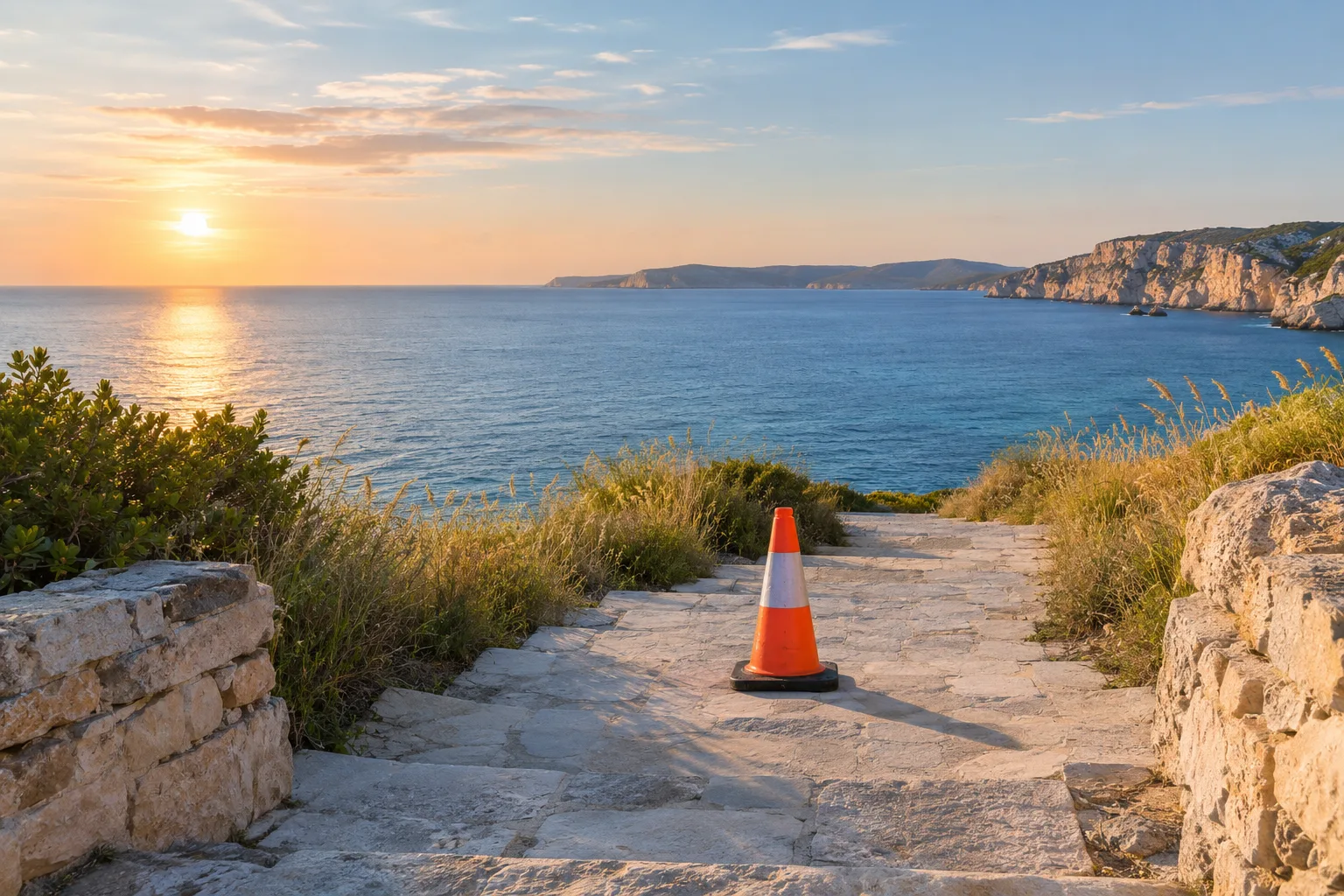
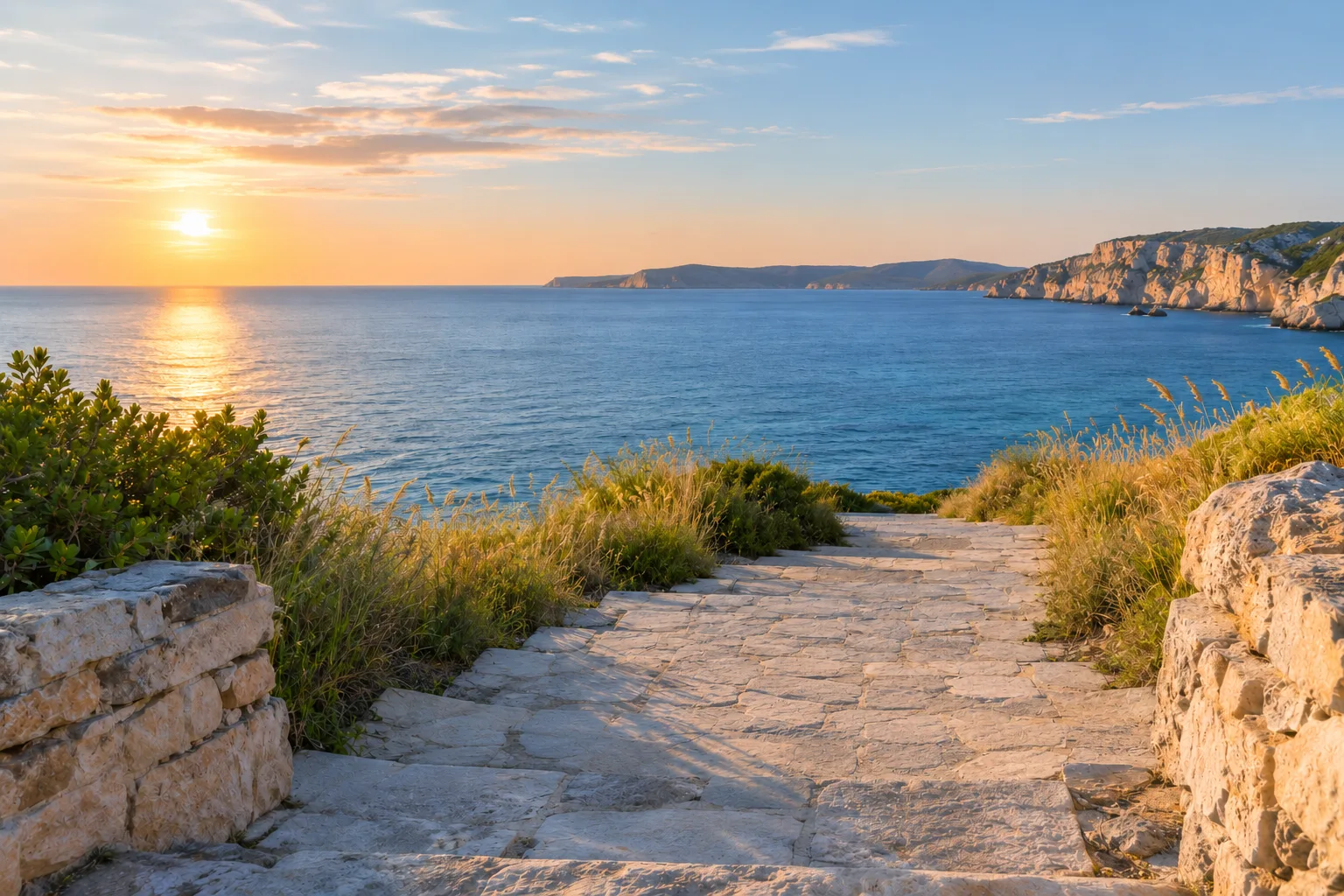
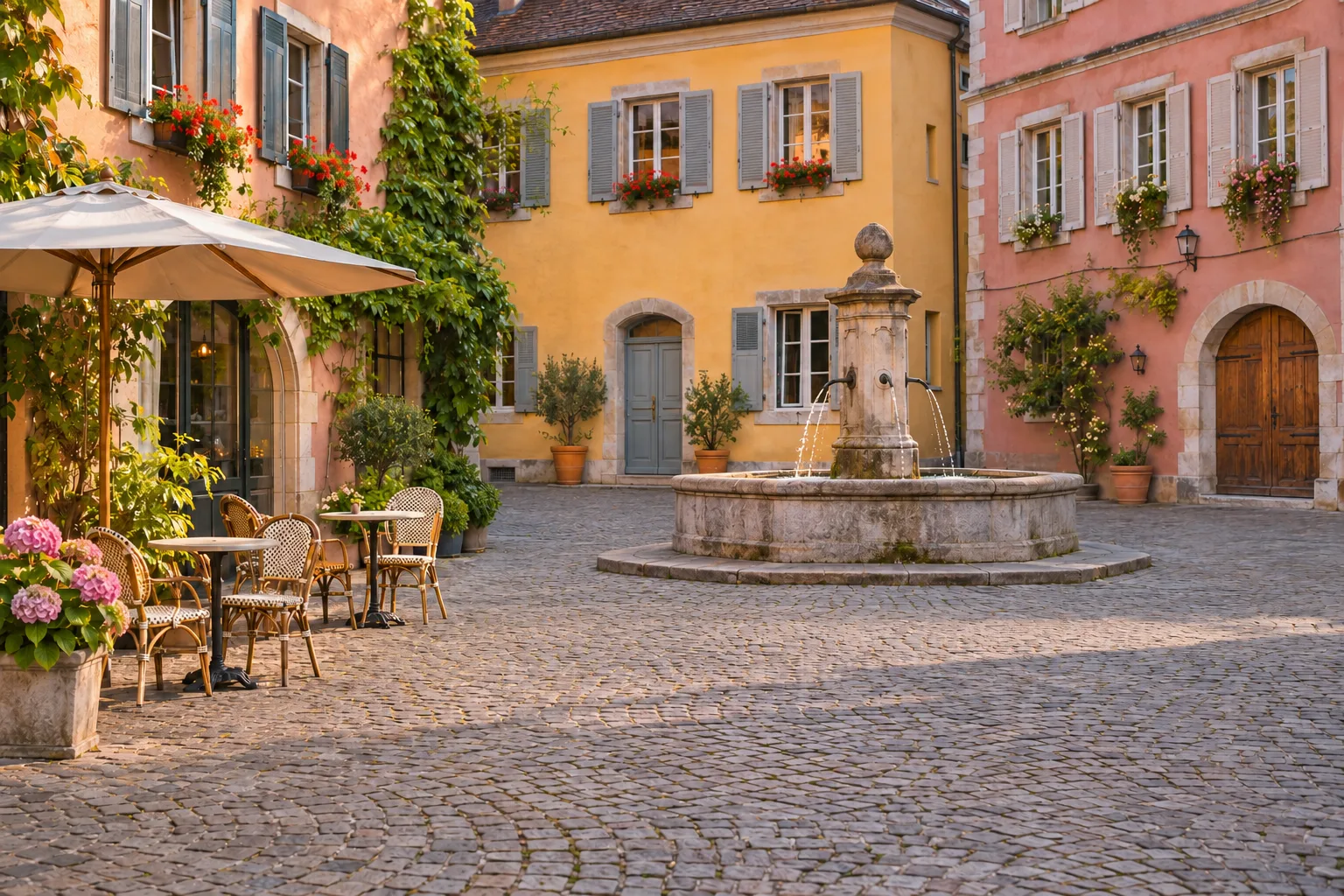
BeforeAfter
Upload a photo, brush over unwanted objects, people, text, or watermarks, and let AI reconstruct the selected area for a cleaner image.
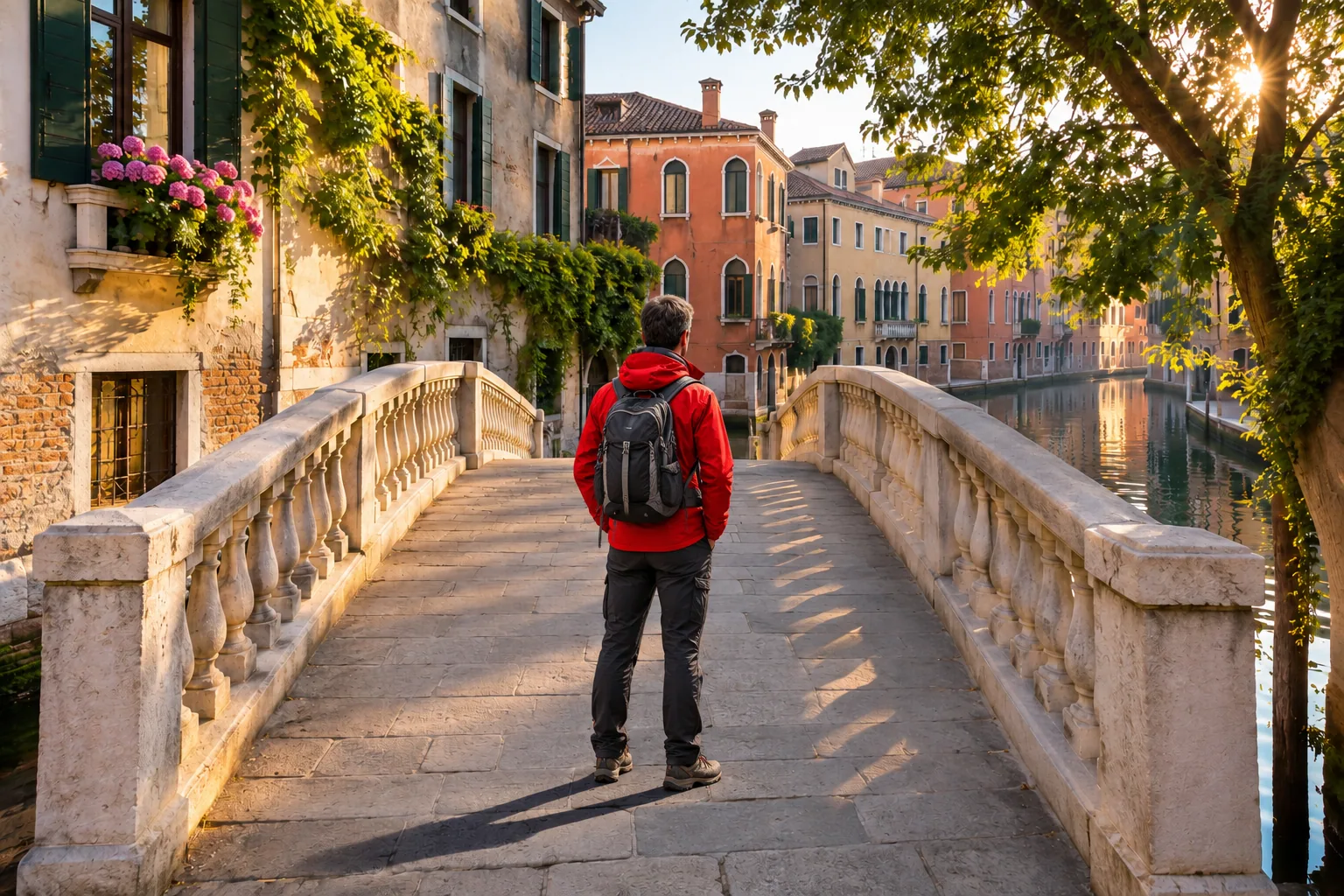
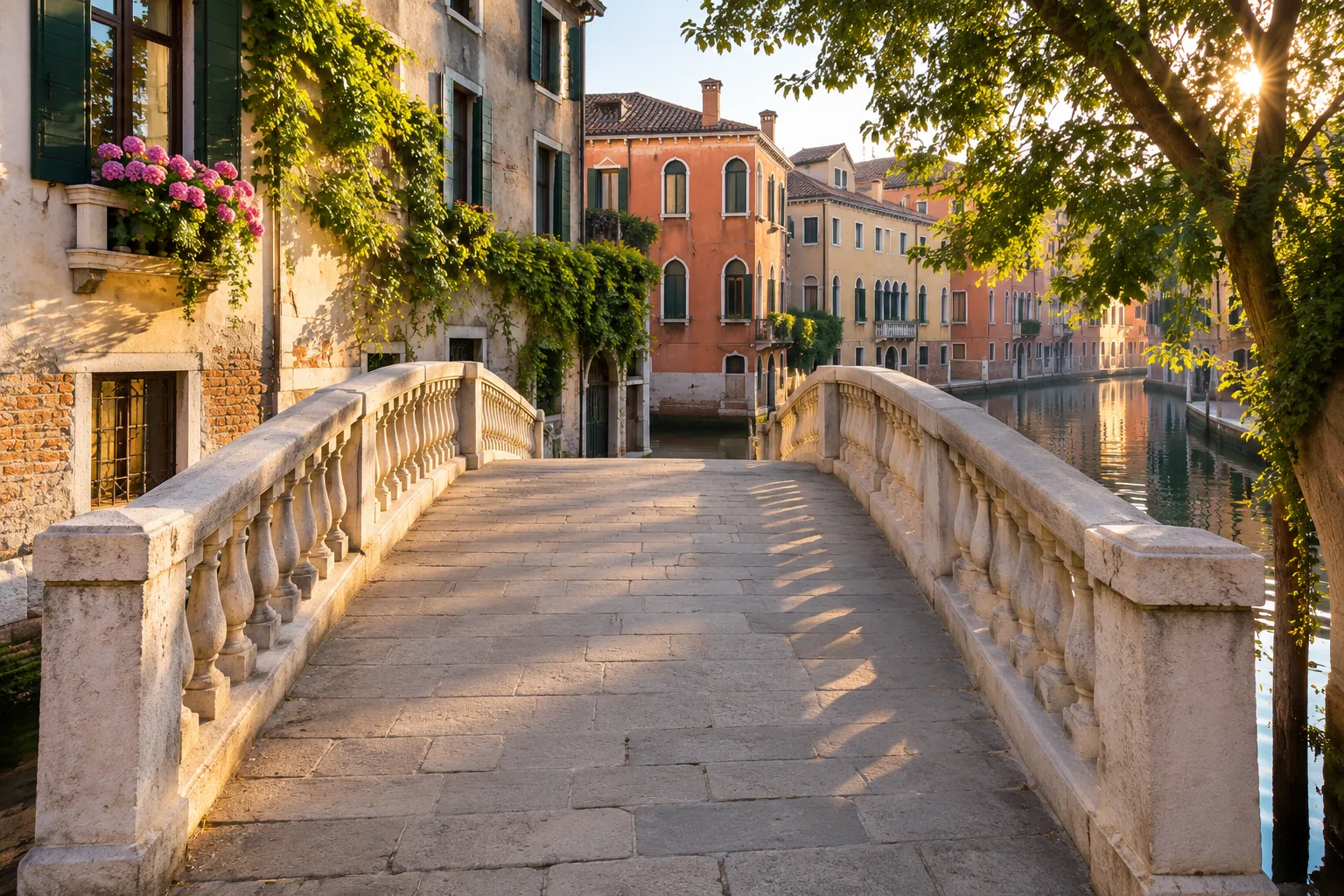
Illustrative before / after
Remove a passerby
Step 1
Choose a photo to start selecting what you want to remove.
Three steps from photo to finished edit.
Choose a JPG, PNG, or WebP photo, or drag it into the workspace.
Paint over people, objects, or text. Adjust brush size, undo, or clear the selection.
Let AI rebuild the selected area, review the result, and download your photo.
What you can remove
One eraser for everyday photo cleanup
Brush over cables, signs, vehicles, or clutter. AI reconstructs the selected area for a cleaner photo.
Try AI Object RemoverErase photobombers, tourists, and background pedestrians while keeping your main subject in focus.
Remove People from Photos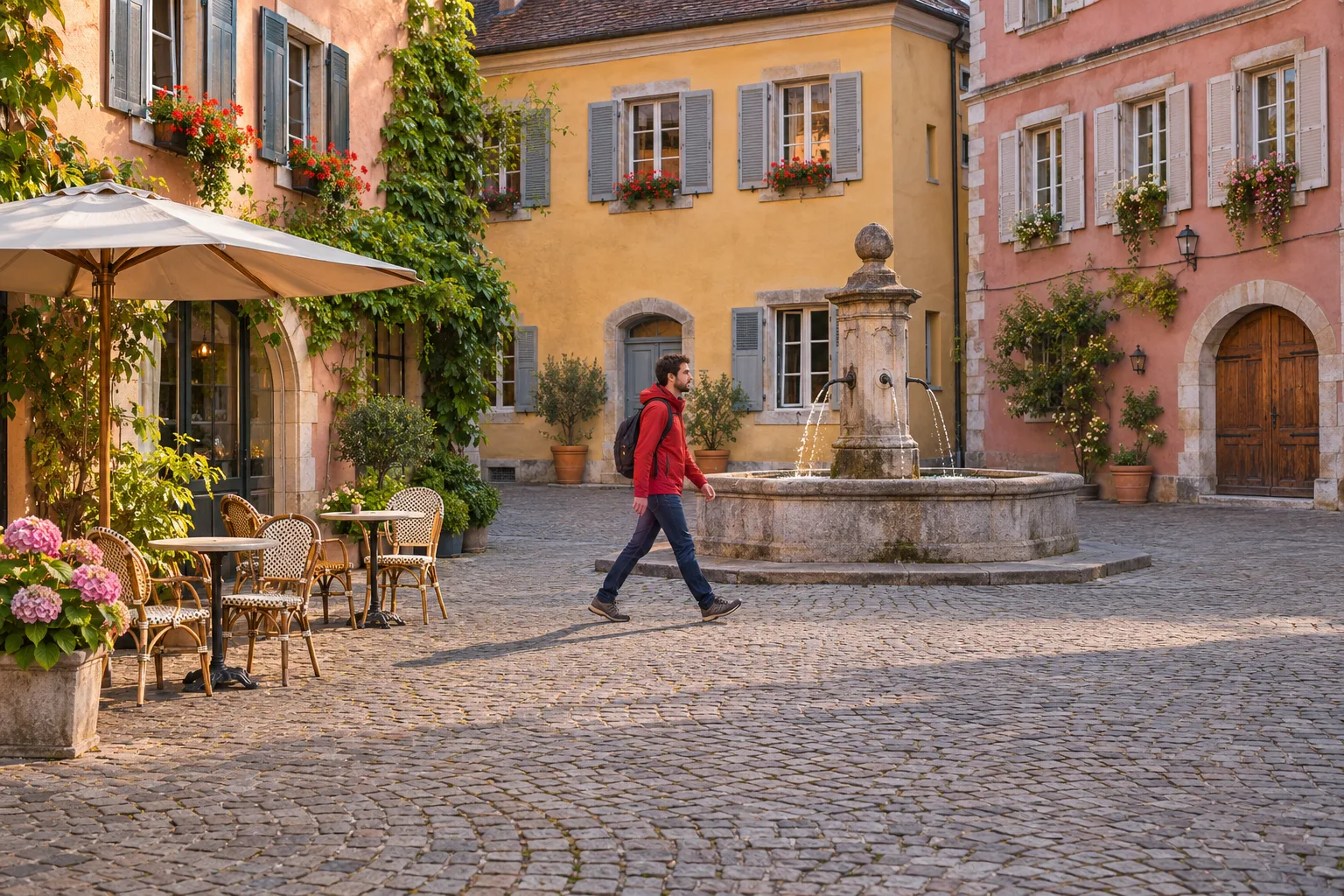
Clean up captions, timestamps, subtitles, and other unwanted text overlays.
Try Text Remover

Select watermark overlays on images you own or have permission to edit. Only modify images you have the right to use.
Try Watermark Remover

Remove background distractions and small unwanted details for a simpler composition.
Clean Up a Photo

A brush mask tells the model which area to regenerate.
Upload, select, erase, and download in one workspace.
Edit in your browser without installing desktop software.
Adjust your selection and try again when an area needs more work.
Choose the plan that works best for you
Perfect for beginners exploring AI video
Billed annually · $239.76 $119.88/year
200 credits per month
Ideal for high-frequency creation
Billed annually · $479.76 $239.88/year
500 credits per month
Designed for heavy production workflows
Billed annually · $935.76 $467.88/year
1,000 credits per month
Have another question? Contact us at support@erasermagiceraser.com
Magic Eraser is an online photo editor that uses AI to reconstruct areas you brush over.
Upload a photo and paint a mask over what you want removed. The image and mask go to an AI model, which generates an edited image.
Upload a photo, brush over the full object, select Erase selected area, and review the result.
Brush over the person, including their outline and shadow where appropriate, then run the eraser.
Yes. Brush over each person before submitting. Large selections can be harder to reconstruct.
Yes. Select captions, timestamps, or text overlays with the brush. Dense text may leave artifacts.
You can select overlays on images you own or have permission to edit. Do not remove watermarks from images you lack rights to modify.
Sign in to receive 2 credits each day. Each photo erase uses 2 credits. You can upload and select an area in the browser before signing in.
Yes. The editor runs in your browser.
JPG, PNG, and WebP images up to 8 MB.
The mask guides the edit, but AI may change nearby details. Review the whole result.
Images are sent to our image processing provider to complete the edit. Review our Privacy Policy for processing and retention details.
Brush over the full object, but keep the selection precise so you do not cover important nearby details.
Start with smaller areas when possible. Large subjects and crowded backgrounds leave less context for AI to reconstruct the image.
Complex textures, overlapping subjects, and dense text can produce artifacts. Check the entire photo before downloading it.